Best AI Meeting Notetaker for In-Person Meetings (2026)
Jan 22, 2026
•
5
MIN READ

AI Summary by Fellow
Your team just wrapped up a critical strategy session in the conference room. Decisions were made. Responsibilities were assigned. Everyone walked out aligned. Three weeks later, nobody can agree on what was actually decided.
This scenario plays out constantly in organizations that have invested in AI notetakers for their Zoom and Teams calls but left their in-person meetings completely undocumented. The gap creates a two-tier system where virtual conversations become searchable organizational knowledge while conference room discussions vanish into collective memory.
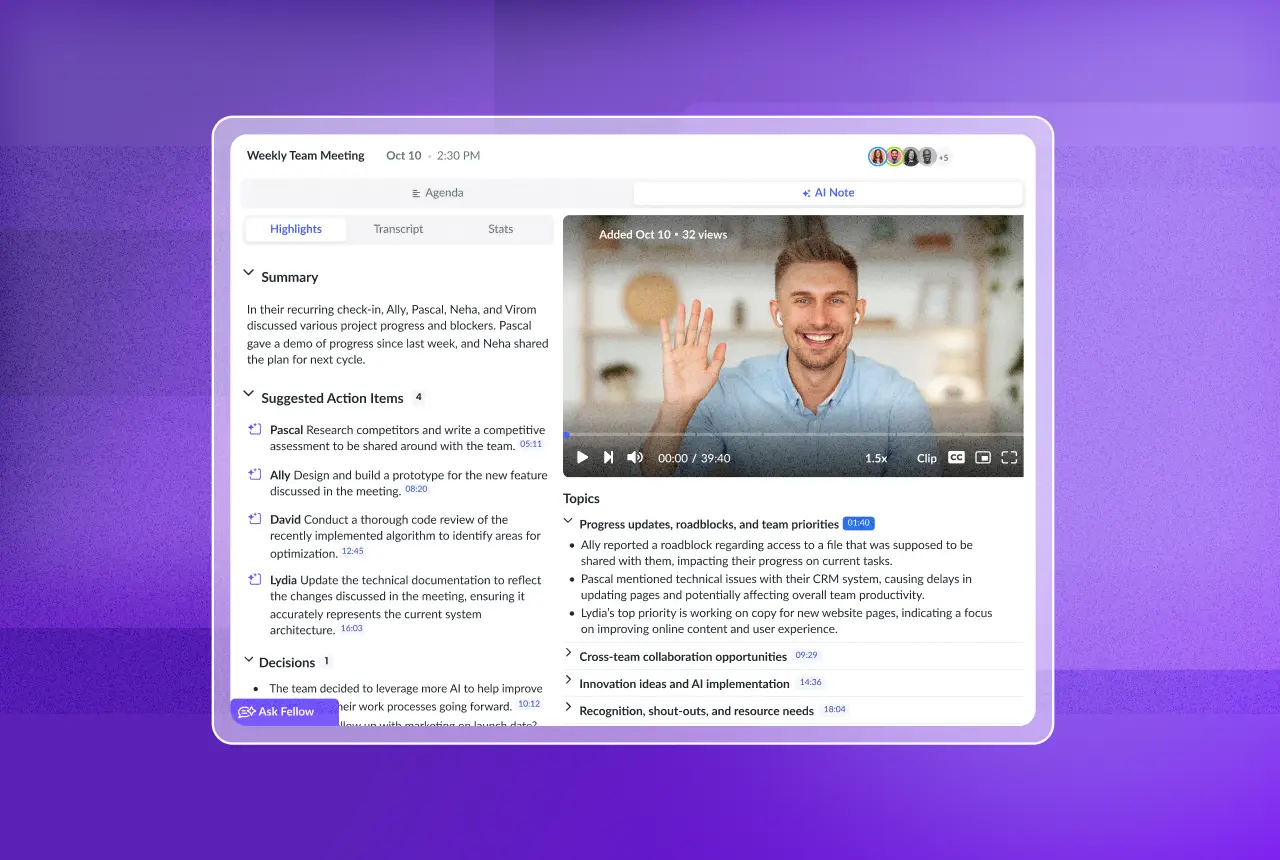
An AI meeting notetaker for in-person meetings solves this by capturing face-to-face conversations with the same accuracy, structure, and searchability you expect from virtual meeting recordings. The right tool uses your laptop or mobile device to record audio, then automatically generates transcripts, AI meeting notes, summaries, and action items without anyone having to take manual notes.
If your in-person meetings disappear the moment people leave the room, there's a better way. Fellow captures conference room conversations and turns them into searchable intelligence your entire organization can access.
Why do most AI notetakers fail for in-person meetings?
Most AI notetakers were built for a virtual-first world. They rely on calendar integrations that detect scheduled video calls, then automatically join those calls as a bot participant. This workflow works seamlessly for Zoom, Google Meet, and Microsoft Teams. It completely breaks down when your team gathers in a physical conference room.
The typical AI notetaker architecture creates several problems for in-person meetings:
No automatic detection: Without a calendar event linked to a virtual meeting platform, the AI has no trigger to start recording
Bot dependency: Meeting bots can't join a physical room. The entire recording mechanism disappears.
Platform lock-in: Tools optimized for specific video platforms often lack any native recording capability for other scenarios
Fragmented systems: Teams end up using one tool for virtual meetings and a completely different solution (or no solution) for in-person conversations
The result is predictable. Organizations capture and make searchable roughly half their meetings while the other half, often the most important strategic discussions that happen face-to-face, remain undocumented.
What makes an AI notetaker work for in-person meetings?
The best AI meeting notetaker for in-person meetings provides multiple capture methods that work regardless of meeting format. Look for these essential capabilities:
Mobile app recording
A dedicated mobile app lets you place your phone in the center of the conference table and capture high-quality audio from all participants. The best apps optimize for multi-speaker environments and handle the acoustic challenges of conference rooms (echo, distance from speakers, background noise).
Fellow's mobile app captures in-person meetings with the same transcription accuracy you get from virtual calls. Place your device on the table, tap to record, and the AI handles everything else: speaker identification, transcription, summarization, and action item extraction.
What sets Fellow apart for in-person recording: Fellow recognizes multiple voices even when everyone shares the same microphone. The AI distinguishes between speakers based on voice characteristics, and it can automatically assign names based on past meetings. If you've recorded calls with Sarah and Marcus before, Fellow identifies them in your next conference room session without manual tagging.
Laptop-based recording
When you're presenting from your laptop in a conference room, browser-based or desktop recording provides another capture option. This works well for smaller meetings or when you're already connected to a display.
Recording upload support
Sometimes you need flexibility. You might have recordings from voice memos, dedicated conference room hardware, or other apps. The right AI notetaker accepts these uploads and processes them with the same AI pipeline as native recordings.
Fellow accepts uploaded recordings from any source. If you captured an in-person meeting using your phone's default voice recorder or conference room equipment, upload the file to Fellow and get a complete summary, meeting minutes, action items, and searchable transcript. This ensures all your meeting intelligence lives in one centralized recording library.
Consistent AI processing
The capture method should not affect the quality of AI outputs. Whether a meeting was recorded via mobile app, laptop, uploaded file, or virtual meeting bot, you should get the same structured outputs: accurate transcription, intelligent summarization, extracted action items with owners and due dates, and key decisions highlighted.
For in-person meetings specifically, look for AI that handles multi-speaker recognition from a single microphone. Fellow recognizes multiple voices sharing one device and automatically assigns speaker names based on voice profiles built from past meetings. This transforms a conference room recording into a properly attributed transcript without manual editing.
How to use Fellow for in-person meetings
You have two options for capturing conference room conversations with Fellow: the desktop app (available now) and the mobile app (with enhanced recording features coming in early 2026).
Option 1: Desktop app (available now)
Bring your laptop to the conference room and use Fellow's desktop app to record:
Open Fellow on your laptop before the meeting starts
Position your laptop centrally on the conference table where the microphone can capture all participants
Start recording through the Fellow desktop app when the meeting begins
Stop recording when the meeting concludes. Fellow's AI processes the audio immediately.
Access your transcript, summary, and action items within minutes
Share with participants or let them access the recording through your organization's Fellow workspace
This method works well when you're already bringing a laptop for presentations or notes.
Option 2: Mobile app
Fellow's mobile app is getting significant upgrades to in-person recording capabilities in early 2026. The enhanced mobile experience will make it even easier to capture conference room meetings directly from your phone.
Option 3: Upload existing recordings
For meetings you've already recorded using your phone's voice memo app, dedicated conference room hardware, or any other recording tool, upload the audio or video file directly to Fellow. Navigate to your recording library, select upload, and Fellow processes the file with the same AI capabilities: full transcription, summary, action items, and speaker identification. This ensures all your meeting intelligence lives in one centralized, searchable location.
If you're tired of in-person meetings disappearing into thin air, Fellow was built to capture every critical conversation, whether it happens on Zoom, in a conference room, or over a Slack huddle.
Audio quality best practices for conference room recording
The quality of your in-person meeting capture depends significantly on audio setup. Use these techniques to get the best results:
Device placement
Position your recording device (phone or laptop) centrally on the table, roughly equidistant from all participants. Avoid placing it directly in front of one speaker, which creates volume imbalances that challenge speaker identification algorithms.
Room acoustics
Hard surfaces create echo and reverberation that degrade transcription accuracy. Conference rooms with carpeting, acoustic panels, or soft furnishings produce cleaner audio. If your room has problematic acoustics, consider placing the recording device closer to the primary speakers.
Background noise management
Close doors, minimize HVAC noise when possible, and ask participants to silence phone notifications. Modern AI transcription handles reasonable background noise well, but extreme noise levels affect accuracy.
Speaker discipline
While AI can identify multiple speakers, overlapping conversations create transcription challenges. Encourage participants to speak one at a time, particularly during critical decision points you'll want to reference later.
Privacy considerations for in-person meeting recording
Recording in-person conversations requires thoughtful privacy practices. Unlike virtual meetings where a recording indicator is standard, conference room participants may not realize they're being recorded.
Consent and notification
Best practice: Announce at the start of any recorded meeting that AI notetaking is active. Many organizations include this in their meeting norms or display a visible indicator (like the recording device prominently placed on the table).
Data security
Enterprise teams need assurance that recorded conversations stay secure. Look for AI notetakers with enterprise-grade privacy controls: SOC 2 Type II certification, HIPAA and GDPR compliance, permission-based access aligned to organizational roles, and explicit commitments about data usage.
Fellow is SOC 2 Type II certified, HIPAA compliant, and GDPR compliant. Fellow never trains AI models on customer data. Your conversations stay yours, with access controls that match your organizational structure.
Recording policies
Develop clear organizational guidelines about which meetings should be recorded, who can access recordings, and retention policies. Centralize these in your AI notetaker's settings rather than leaving decisions to individual meeting hosts.
Fellow vs Jamie vs Krisp: which is best for in-person meetings?
When evaluating AI meeting assistants for in-person use, three options frequently appear in comparisons. Here's how they stack up:
Feature | Fellow | Jamie | Krisp |
|---|---|---|---|
Mobile app for in-person recording | Yes | Yes | No |
Multi-speaker recognition (single mic) | Yes | Yes | Limited |
Auto-assign speaker names from past meetings | Yes | No | No |
Upload external recordings | Yes | Limited | No |
Virtual meeting support | Zoom, Meet, Teams, Slack huddles | Zoom, Meet, Teams | Zoom, Meet, Teams |
Botless recording option | Yes | Yes | Yes (local only) |
Organization-wide search (Ask Fellow) | Yes | No | No |
Enterprise security (SOC 2 Type II) | Yes | Yes | Yes |
Native integrations | 50+ | Limited | Limited |
API access | Yes (Fellow API) | No | No |
Fellow
Best for: Organizations that need to capture both virtual and in-person meetings while maintaining searchable intelligence across their entire meeting history.
Fellow's strength is unifying all meeting capture into a single searchable system. Record in-person meetings via mobile app, upload recordings from other sources, and capture virtual meetings with or without bots. Then use Ask Fellow to query across everything: "What did we decide about the product launch?" returns relevant context whether that decision happened on a Zoom call or in the conference room.
For in-person meetings, Fellow's multi-speaker recognition identifies individual voices even when everyone shares one microphone. The AI automatically assigns names based on voice profiles from past meetings, so your conference room transcript shows "Sarah: We need to prioritize the mobile launch" rather than "Speaker 1: We need to prioritize the mobile launch."
Fellow's integrations (50+ native plus 8,000+ through Zapier and n8n) mean action items from in-person meetings flow directly into your project management and CRM tools. SOC 2 Type II certification, HIPAA compliance, and a commitment to never train on customer data make Fellow appropriate for enterprise and regulated industries.
Jamie
Best for: Individual professionals who primarily need personal note-taking for their own meetings.
Jamie positions strongly around offline and in-person recording, with a mobile app that works without internet connectivity. The tool excels for individual use cases but lacks the organization-wide intelligence features (like Ask Fellow) that make meeting knowledge searchable across teams. Limited integration options mean manual work to connect meeting outputs to other systems.
Krisp
Best for: Users primarily focused on noise cancellation and individual meeting recording.
Krisp started as a noise cancellation tool and added AI notetaking. It works well for virtual meetings with its local recording approach but lacks dedicated mobile app support for conference room capture. Organization-wide search and extensive integrations are not current strengths.
Common mistakes when recording in-person meetings
Avoid these pitfalls that undermine your in-person meeting capture:
Starting recording late
The first few minutes often contain important context-setting and agenda items. Start recording before the meeting officially begins to ensure nothing critical is missed.
Forgetting to stop recording
Post-meeting sidebar conversations may contain sensitive information not intended for the official record. Stop recording when the formal meeting concludes.
Poor audio capture leading to unreliable transcripts
If your transcription accuracy suffers, improve device placement and room conditions rather than accepting lower quality. Unreliable transcripts undermine trust in the entire system.
Not establishing recording as standard practice
Sporadic recording creates gaps in your organizational knowledge. Establish in-person recording as the default for important meetings, not an occasional addition.
Failing to centralize recordings
If in-person meeting recordings live separately from virtual meeting notes, you've recreated the same siloed information problem. Use a tool like Fellow that unifies all meeting intelligence in one searchable location.
Frequently asked questions
What is the best AI notetaker for in-person meetings?
The best AI notetaker for in-person meetings captures conference room conversations through a mobile app or laptop, then processes them with the same AI pipeline used for virtual meetings. Fellow stands out because it combines mobile recording for in-person meetings, upload support for external recordings, and organization-wide search that makes all meeting intelligence queryable. This ensures decisions made in conference rooms are as searchable as those made on Zoom.
Can I use an AI meeting assistant without a virtual meeting bot?
Yes. Bot-free AI notetakers like Fellow offer multiple capture methods that don't require a bot to join your call. For in-person meetings, mobile app recording eliminates bots entirely. For virtual meetings, botless recording options capture audio directly without a visible bot participant. This flexibility works for organizations concerned about bot presence in sensitive meetings.
How do I record an in-person meeting for AI transcription?
Use a dedicated AI notetaker app on your mobile phone. Place the device centrally on the conference table where it can capture all speakers, tap to start recording, and stop when the meeting concludes. The AI processes the audio and delivers a transcript, summary, and action items within minutes. Fellow's mobile app handles this workflow and adds the recording to your searchable meeting library alongside virtual meeting captures.
Is it legal to record in-person meetings?
Recording laws vary by jurisdiction. Most business contexts allow recording with participant consent. Best practice: announce at the start of any recorded meeting that AI notetaking is active and give participants the opportunity to object. Your organization should establish clear policies about meeting recording, consent procedures, and data retention.
How accurate is AI transcription for conference room meetings?
Modern AI transcription achieves high accuracy for in-person meetings when audio quality is reasonable. Factors affecting accuracy include device placement, room acoustics, background noise, and speaking patterns (overlapping speech reduces accuracy). Well-configured conference room recordings typically achieve accuracy comparable to virtual meeting transcription.
Can I upload recordings from other apps to an AI notetaker?
Some AI notetakers, including Fellow, accept uploaded audio and video files from external sources. This lets you capture in-person meetings using any recording method, then process them through your AI notetaker for transcription, summarization, and action item extraction. Uploaded recordings appear in your meeting library alongside natively captured meetings.
Stop leaving your in-person meetings undocumented
Every in-person meeting without AI capture is context your team can't search, decisions no one can reference, and accountability that disappears when people leave the room. Your conference room conversations contain the same critical organizational knowledge as your Zoom calls. They deserve the same treatment.
Fellow captures every meeting format your team uses: Zoom, Google Meet, Microsoft Teams, Slack huddles, and in-person conversations. Record conference room meetings through the mobile app, upload recordings from any source, and use Ask Fellow to search across everything. Your meetings become shared, searchable intelligence instead of fading memories.
Join teams at Shopify, HubSpot, Vidyard, and Motive who've made all their meetings searchable. SOC 2 Type II certified, HIPAA compliant, and we never train on your data.
Record, transcribe and summarize every meeting with the only AI meeting assistant built from the ground up with privacy and security in mind.